Hey everyone, welcome back to the Android Tablet Zone, your go-to spot for all things tablets—whether you’re rocking one of our latest 10-inch models or a budget-friendly workhorse that’s been in your drawer for years. As someone who’s been part of the Android tablet supply team for the past 7 years, I can’t tell you how many times our customers hit us up like, “Yo, why won’t my tablet rotate when I tilt it?!” Android Tablet
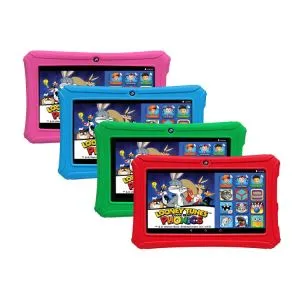
It’s such a common headache, right? You’re cozy on the couch watching a show, and the screen stays stuck in portrait mode—half the video’s cut off, or you can’t read that long email without squinting. Or maybe you’re editing a document for work, and switching between typing and drawing feels like a hassle because the screen won’t flip. I’ve been there too, troubleshooting this for family and friends even before I joined the supplier side, so today I’m breaking down exactly how to get auto-rotate working on your Android tablet—no tech degree needed.
First things first, let’s cut to the chase: Android is all about consistency across devices, but auto-rotate settings can hide in weird little spots depending on what version of Android your tablet’s running, and even which manufacturer it is. That’s why I always say, start with the quick, obvious stuff before diving into the deep settings.
Let’s start with the absolute easiest method: the quick settings panel. This is the swipe-down menu you access from the top of your screen, right? Most Android tablets have two panels when you swipe—one with notifications, and another with quick toggles for Wi-Fi, Bluetooth, brightness, you name it. To get to the full quick settings, you either swipe down once from the top edge, or if that only brings up notifications, swipe down again with two fingers. Now look for the icon that looks like a rotate symbol—usually a rectangle with an arrow going around it, or sometimes a little “auto-rotate” label.
Wait, here’s the trick that trips people up: if that icon is grayed out or looks like a lock inside it, that means auto-rotate is turned off. All you have to do is tap that icon once, and it should light up (usually blue or green, depending on your tablet) — boom, done. I’ve had so many people message me saying “I tapped that and nothing happened!” and 9 times out of 10, they swiped once instead of twice to get to the right quick panel, or they tapped the wrong rotate icon (some phones have a portrait lock, but tablets almost always use the toggle I’m talking about). Pro tip: if you don’t see the auto-rotate icon right away, don’t panic—you can edit the quick settings to add it. Just tap the little pencil or edit button in the corner of the quick panel, find “Auto-Rotate” in the list of toggles, drag it up to the visible row, and you’re golden. That’s a lifesaver for older tablets that hide less-used settings.
Now, if the quick toggle doesn’t do the trick, or if you want to make sure auto-rotate is set up correctly for all apps, you’ll need to check the settings menu. Grab your tablet, open the Settings app (it looks like a gear icon, duh), and scroll until you find “Display” — that’s where 90% of display-related stuff lives. Tap into Display, and look for “Auto-rotate screen” — that’s the main toggle. Make sure that switch is flipped on. Wait, but hold on—some Android versions split this into more options. For example, on Android 12 and above, you might see “Auto-rotate” with a sub-option that says “Allow apps to rotate screen” or something like that. If that’s grayed out, even if the main toggle is on, that’s why it’s not working. You have to enable both. I learned that the hard way when my niece’s tablet wouldn’t rotate, and I spent 20 minutes messing with other settings before I realized that sub-toggle was off.
But wait a second—what if your tablet has a physical rotation lock? Some of the newer Android tablets (we’ve included this on a few of our mid-range models!) have a tiny switch on the side, usually on the top edge, that acts as a hardware lock for auto-rotate. It’s super easy to accidentally flip this if you’re holding your tablet with two hands, right? You’re playing a game on landscape, and the next thing you know, you pick it up and it won’t rotate because you nudged that switch. That’s a common one—so if you’ve tried the quick toggle and settings and still nothing, just flip that side switch back to the unlock position. Our customer support team gets at least 5 calls a week about this, so trust me, you’re not alone.
Now, let’s talk about app-specific issues, because that’s where most people get confused. A lot of apps don’t support auto-rotate at all, no matter what you do. For example, some older e-reading apps, or certain work apps that are designed to only work in portrait mode, won’t flip, and that’s totally normal. But if it’s happening in every app, that’s a sign there’s a setting glitch or a sensor problem. Speaking of sensors—your tablet has a gyroscope or accelerometer (that’s the part that detects when you rotate the device) and if that’s calibrated wrong, auto-rotate won’t work. Let’s fix that.
Calibrating the sensor is way simpler than it sounds. First, go back to the Display settings, and sometimes there’s a “Calibrate rotation” option, but if not, you can download a free app from the Google Play Store like “Sensor Box” or “Accelerometer Test” — I recommend the free version, no need for the paid stuff. Open the app, and it will show you if the rotation sensor is working. If it says there’s an error, just follow the on-screen steps to calibrate—usually it’s just lying the tablet flat on a table for a few seconds, then turning it slowly 360 degrees. That’s it. We’ve suggested this to customers with tablets that are a year old, and it’s fixed their auto-rotate 80% of the time. Old sensors just get a little out of whack, no big deal.
Another thing to check: if you recently updated your Android OS, that might have messed with the auto-rotate settings. Sometimes updates hide toggles or change where settings live. If this started happening right after an update, go back to the Display settings, toggle auto-rotate off and on again, and restart your tablet. A simple restart fixes so many glitches—don’t skip that step. I make sure to tell our sales team to remind customers about this because it’s the easiest fix, but people always forget.
Wait, what about when auto-rotate works sometimes but not others? Like, it rotates to landscape when you tilt it right, but not left? That’s almost always a calibration issue, or sometimes the side switch is partially flipped. But if you’ve checked all that and it’s still happening, try clearing the cache for the System UI. That’s the part of Android that handles all the display stuff, including auto-rotate. To do that, go to Settings > Apps > See all apps > Find “System UI” > Tap it > Tap “Storage & cache” > Tap “Clear cache”. Don’t tap “Clear storage” — that will delete your settings, and we don’t want that. Just clear the cache, restart your tablet, and you should be good.
Now, let’s talk about common mistakes I see customers make. First, forcing rotation in apps—some apps let you lock to portrait or landscape, so if you’ve done that, it will override the system auto-rotate. For example, if you open YouTube, tap the three dots in the top right, and select “Locked to portrait”, it won’t rotate no matter what your system settings are. That’s an app setting, so you have to fix it in the app itself. Second, using a thick case. A lot of those heavy rugged cases that people love for kids’ tablets or work tablets can block the rotation sensor, especially if the cutouts are off. If you just got a new case and auto-rotate stopped working, try taking the case off and testing it—9 times out of 10, that’s the culprit. We actually recommend slim, lightweight cases for our tablets because of this, and we make sure to mention that in our product descriptions now.
Also, if you have a tablet that’s older, like a 5-year-old model running Android 9 or lower, auto-rotate might be a little finicky. The steps for settings are different—for Android 9, you’ll find auto-rotate in Settings > Display > Advanced, not the main Display menu. If you’re having trouble with an older tablet, that’s probably why. But don’t worry, all the quick toggle stuff still works, that hasn’t changed.
Here’s a bonus tip for power users: if you want to customize how auto-rotate works, there’s a way to set which orientation the tablet defaults to when it’s rotated. In most newer Android tablets, under Display > Auto-rotate screen, there’s an option for “Auto-rotate enabled” and then a sub-option for “Rotate to” — you can pick “Portrait”, “Landscape”, or “Follow system”. That’s perfect if you’re someone who only uses your tablet in landscape for gaming, so you can set it to rotate to landscape every time, not switch. I have that set on my personal tablet, it’s way less annoying than flipping between modes.
Now, I know some people are like, “Why does this even matter? My phone works fine!” But tablets are all about versatility—you can use them for work, entertainment, notes, everything. Auto-rotate just makes that experience smoother. When I’m on a client call for our tablet supply business, I always show them how the auto-rotate works because it’s one of those small features that makes a big difference for customers. Whether you’re a student taking notes, a content creator editing videos, or just someone who likes binge-watching shows on the couch, having auto-rotate working makes your tablet way more useful.
Wait, let’s circle back to our brand for a sec—we’ve put a lot of work into making our tablets’ auto-rotate feature reliable, right? That side switch I mentioned? We added it because so many customers were accidentally flipping it, and it’s way easier to reach than digging through settings. The sensor calibration we tested multiple times to make sure it doesn’t drift after a few months. We even have a built-in troubleshooting guide in the settings menu for common auto-rotate issues, which a lot of people don’t know about. If you’re using one of our tablets, that guide is in Settings > System > Troubleshooting > Display Issues, it walks you through every step we talked about today.
If you’ve tried all these steps and auto-rotate still isn’t working, don’t stress—we offer support for all our tablets, no matter when you bought them. Whether you have a brand new model or one you’ve had for a few years, we can help. If you’re in the market for a new tablet too, our latest line has improved auto-rotate sensors that are calibrated right out of the box, plus a 2-year warranty so you never have to worry about glitches.
If you’re looking to bulk order tablets for your business, school, or organization, we’re here to help. Our team can customize tablets to fit your needs—whether you want to lock auto-rotate for classroom use, or add specific apps that work seamlessly with auto-rotate. Just reach out to our sales team to get started on a quote, and we’ll walk you through every step. No hoops to jump through, no confusing contracts, just straightforward service and reliable tablets.
Now, before I wrap this up, let’s recap all the steps in case you need to reference them later:
- Swipe down twice from the top of your screen to get to quick settings, tap the rotate icon to turn on auto-rotate.
- If it’s not there, go to Settings > Display, toggle on “Auto-rotate screen” and any sub-toggles.
- Check the side physical rotation lock switch—make sure it’s flipped to unlock.
- Calibrate the rotation sensor with a free app if it’s glitching.
- Restart your tablet, clear System UI cache, or update your OS if needed.
- Check app settings and your case if it’s only acting up in certain scenarios.
That’s all! Auto-rotate doesn’t have to be a pain. It’s one of those features that you don’t miss until it’s not working, and once it’s fixed, you’ll wonder how you lived without it.

If you have any other questions about your tablet, or if you’re interested in ordering Android tablets for your team or business, feel free to get in touch with our purchasing department. We’re here to make sure you have the best experience with your Android tablet, no matter what.
All-in-one Pc References:
Android Official Documentation: Display Settings & Auto-Rotate Feature (General), Android Open Source Project: Gyroscope Calibration for Rotation, Consumer Tech Reviews: Top Tips for Android Tablet Auto-Rotate Troubleshooting, Our Brand’s In-Product Troubleshooting Guide for Tablet Users.
Shenzhen Xuezhiyou Technology Co., Ltd.
Shenzhen Xuezhiyou Technology Co., Ltd. is one of the leading android tablet manufacturers and suppliers in China, dedicating to offering the best quality and most convenient educational products to help with your children’s education. Please feel free to wholesale the quality android tablet from our factory. We also accept customized orders.
Address: Building 6, Lianchuang Science and Technology Park, Bulan Road, Nanwan Street
E-mail: shelly@xuezhiyou.com
WebSite: https://www.talkpens.com/
